SIDE BY SIDE
Ctrl+Bv/sSplit viewWatch logs while code changes
Split horizontally or vertically. Run a coding task on one side and your server on the other.
GDMUX / TERMINAL WORKSPACE
AI coding, servers, and logs spread across windows?
See task status and recent responses together, then return to the right terminal.
A workspace inside the terminal you already use.
Add gid for AI coding conversations.
macOS 13+ · Apple Silicon & Intel
Actual terminal with the default theme. Example task data; screenshots show the Korean interface.
01Bring tasks togetherOrganize AI coding, servers, and logs by project.
02Find what needs attentionRead each task’s status and recent response in one place.
03Return to the taskChoose a terminal and continue with your next instruction or command.
WORK SIDE BY SIDE
Need server logs while AI edits your login code? Put both tasks side by side. Check other projects from the task canvas.
In your project, run gdmux to start. For shortcuts, press and release Ctrl+B, then press the indicated key.
Split horizontally or vertically. Run a coding task on one side and your server on the other.
Choose your installed gid from the launcher to open a coding conversation. gdmux manages the workspace and running sessions.
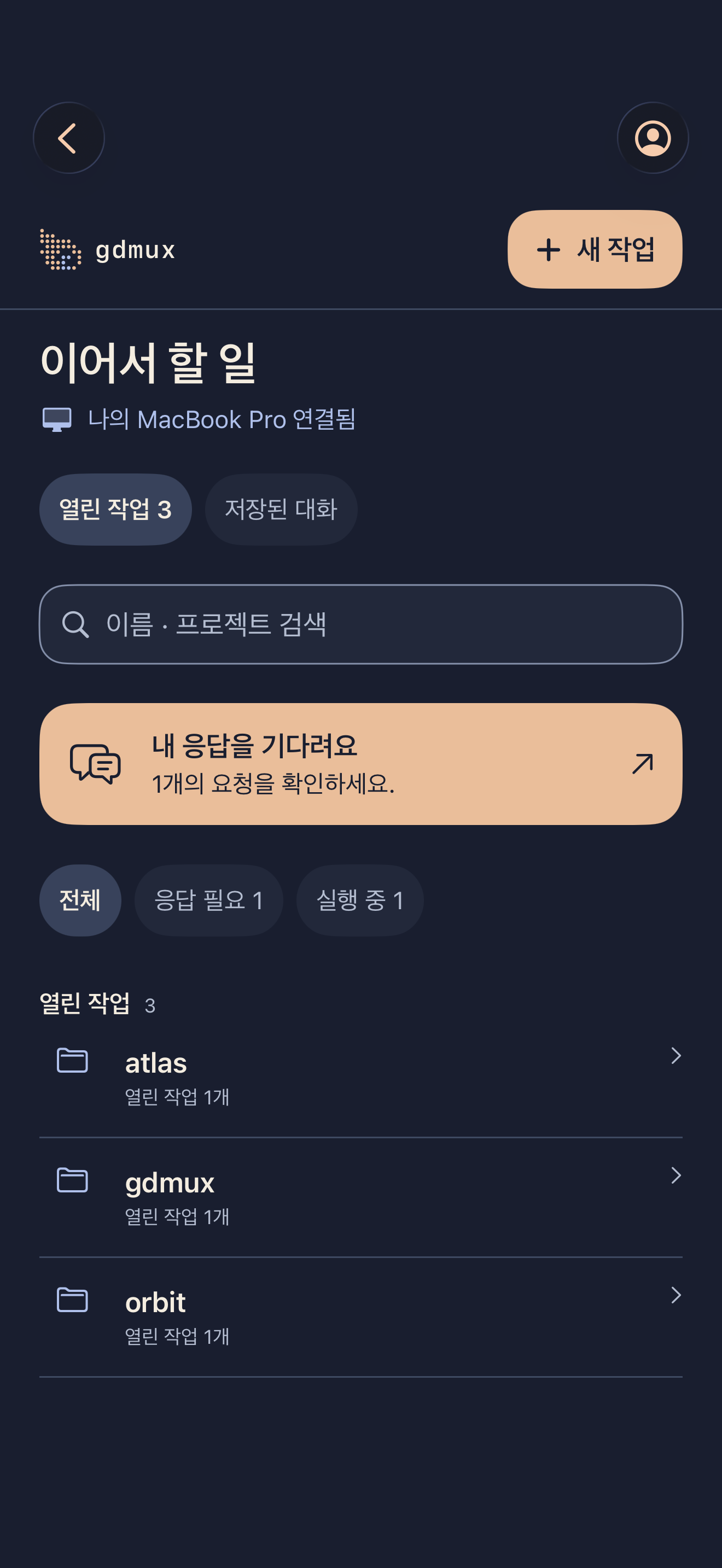
Check status and recent responses in the task canvas, then jump to the task that needs attention.
Find actions with Ctrl+Bp. See every shortcut with Ctrl+B?.
LEAVE THE VIEW. RETURN TO THE WORK.
Ctrl+Q leaves the view. Run gdmux again to reconnect to your running session.
Tasks continue while the background session manager is running. Running processes are not restored after a Mac shutdown or restart.
YOUR WORKSPACE, YOUR COLORS
New installations start with Tokyo Night. Choose a light theme or set background and text colors in your config file. Your existing theme choice is preserved.
Choose a preset or customize the background and accents. Transparency follows your terminal’s settings.
Personal themes and downloadsGDMUX / MAC → IPHONE
Check gid tasks running on your Mac from your iPhone. Send follow-ups, approve actions, and read the results.
Free to download on iOS 17 and later.
Remote work requires your Mac and connection service to stay on and online.